DOCUMENTATION
Everything behind
your media workflow.
Start with the illustrated setup guide, then explore the settings and workflows that keep an established WordPress library running.
Start here
Connect Google, choose storage, and verify an upload.
Read guide →Prepare Google Cloud
Projects, billing, permissions, and bucket verification.
Read guide →Manual setup
Use a bucket and service-account credential managed by your team.
Read guide →Synchronize media
Bring an existing library into cloud storage.
Read guide →Storage modes
Understand local files, serving URLs, and compatibility.
Read guide →Multisite
Choose network-wide or individual-site scope.
Read guide →Troubleshooting
Recover from sign-in, permission, and upload problems.
Read guide →Integrations
Check addons for your store, forms, builders, and image tools.
Read guide →Configuration constants
Deployment-controlled settings and the legacy reference.
Read guide →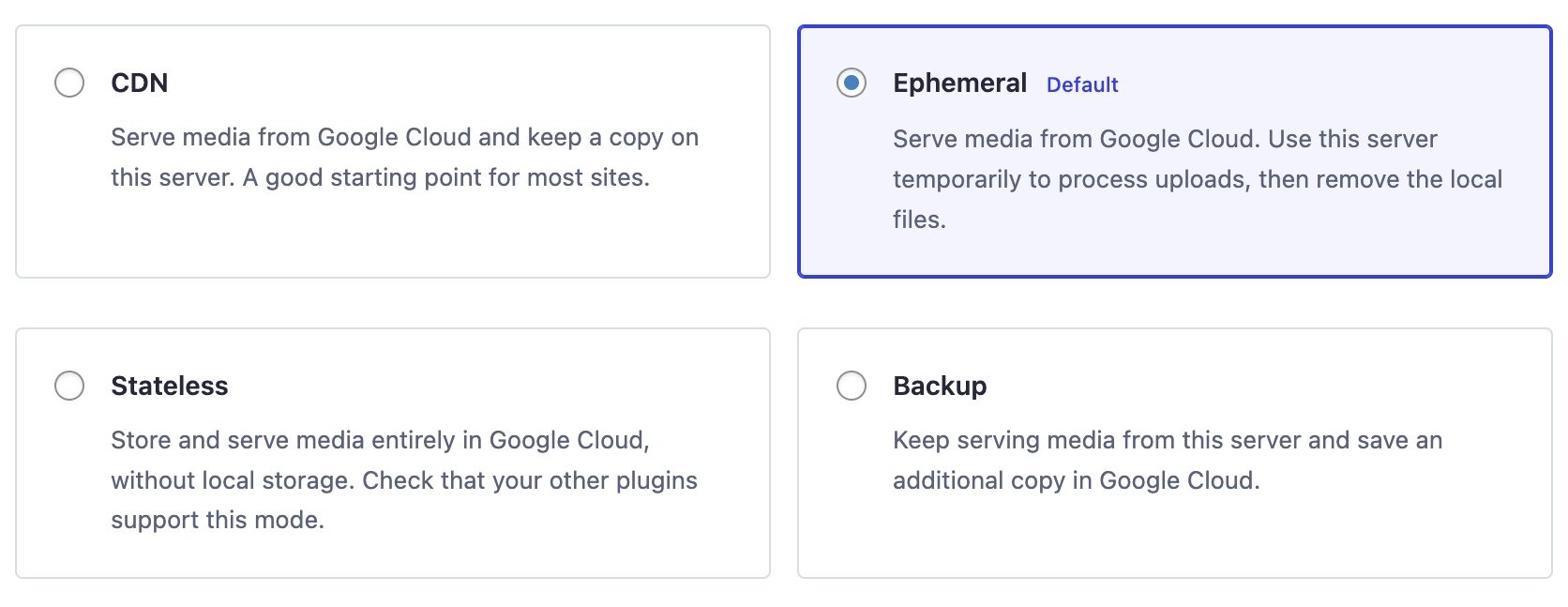
Keep your site running.
Settings
Storage, URLs, deletion, and deployment overrides.
Read the guide →Upgrading
A practical checklist for existing installations.
Read the guide →Release notes
Find the authoritative published change history.
Read the guide →Support
Troubleshooting, community questions, and bug reports.
Read the guide →Original plugin overview
This overview is retained from the earlier documentation. The original list predates Ephemeral mode. Trial terms and timing claims are historical, and Cloud Storage location alone is not a global CDN; see the current mode and setup guides above.
Upload and serve your WordPress media from Google Cloud Storage (GCS) with the WP-Stateless plugin. In as little as two minutes, you will be benefitting from serving your media from Google Cloud’s distributed servers.
New to Google Cloud? Google is offering you a $300 credit to get you started.
Benefits
- Store and deliver media files on Google Cloud Storage instead of your server.
- Google Cloud Storage is geo-redundant, meaning your media is delivered by the closest server – reducing latency and improving page speed.
- Scale your WordPress website across multiple servers without the need of synchronizing media files.
- Native integration between Google Cloud Storage and WordPress.
- $300 free trial from Google Cloud. Nice!
Modes
- Backup – Upload media files to Google Storage and serve local file urls.
- CDN – Copy media files to Google Storage and serve them directly from there.
- Stateless – Store and serve media files with Google Cloud Storage only. Media files are not stored locally.
Features
- Setup assistant makes getting started fast and easy.
- No need to manually create service accounts or buckets – handled automatically.
- Settings panel provides you with further GCS configuration and file url customization.
- Mask the default GCS URL with your own custom domain.
- Automatically replace hardcoded media URLs with GCS equivalents in post editor and meta.
- Batch image thumbnail regeneration.
- Synchronization tools for uploading existing files and images.
- All settings supported with wp-config constants and network setting overrides.
- Multiple modes: Backup, CDN, Stateless.
- All files served in HTTPS mode.
- Multisite compatible.
Support, Feedback, & Contribute
We welcome community involvement via the GitHub repository.
Custom Development
Looking for a unique feature for your next project? Hire us!
Full Cloud setup walkthroughs
1. Billing account
Set up billing and associate it with your project.
2. Cloud project
Understand project names, IDs and organization ownership.
3. Storage bucket
Choose location, storage class, access and protection.
4. Service account and key
Configure the application identity and protect its JSON key.
5. WordPress settings
Save configuration, upload media and verify the bucket.
Download the original documentation and media archive. Preserved for reference; use the current setup guide for new connections.