EXISTING LIBRARIES
Bring the media
you already have.
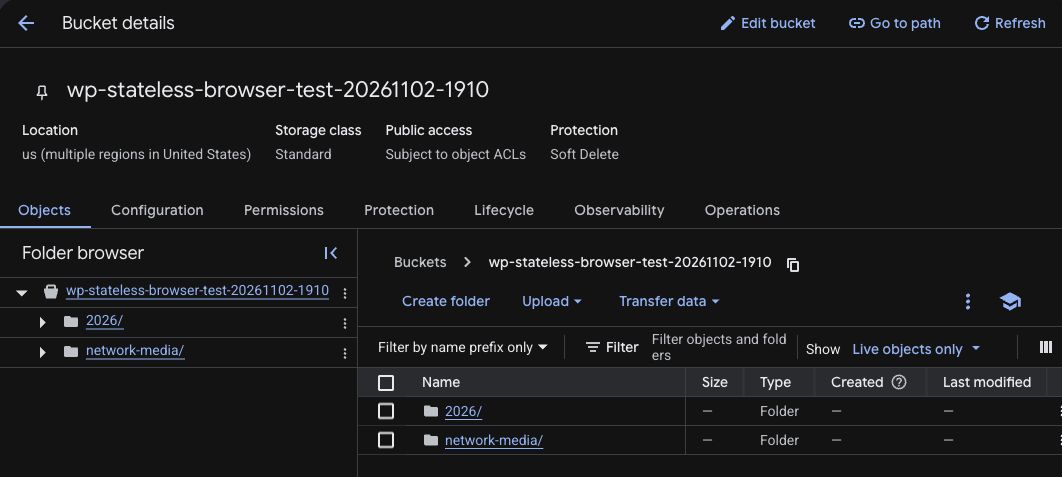
Connecting a bucket prepares new uploads. Your existing attachments need their own synchronization workflow.
Start small, then scale up.
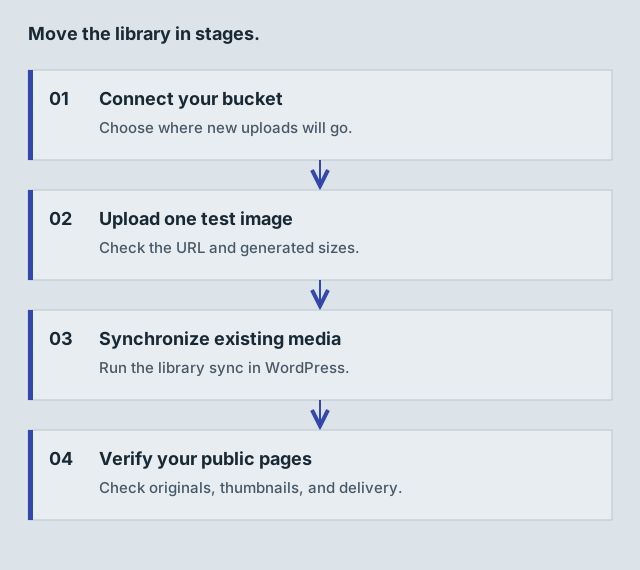
- Back up the database and original media files. Record the current mode, bucket, and root directory.
- Open Media → Stateless Settings and locate the synchronization tools.
- Run a small sample before a full-library job. Use the available resume or range controls for your installed version.
- Check original images and every generated size. Visit real posts, galleries, and shop pages while logged out.
- Review failures and retry affected attachments. A finished progress bar is not a substitute for checking the files.
Large libraries may need batches or WP-CLI on your host. Check the commands and options provided by your installed release before running unattended jobs.